TPMS solution
How To use TPMS Configurator
TPMS receiver TP07 is designed for offering TPMS data to other devices like GPS tracker, DVR, car electronics. Below is steps for how to connect TPMS devices to Teltonika GPS via RS232.
Things to start
• TPMS receiver TP07, or TPMS display TP09-C
• TPMS configuration Software
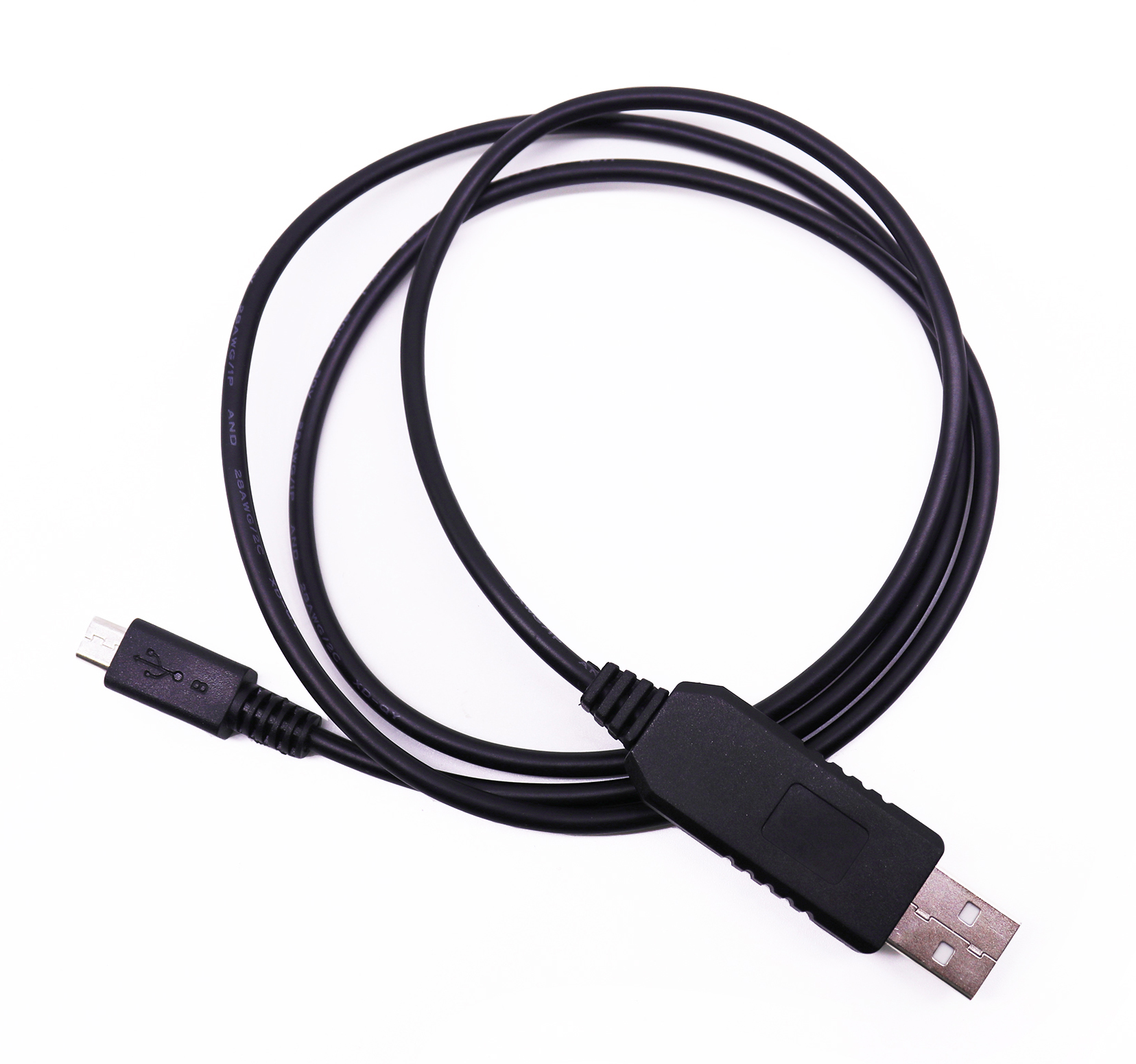
• USB uart cable for TPMS receiver TP07, normal Micro USB cable for TP09-C
• Windows OS PC Win 8, Win 10 or Win11
Install driver for configuration cable
• TP07 or signal repeater
If you didn't install the driver for configuration cable, please install driver first. If you configure TPMS display TP09-C, driver is not required.
Unzip USBToTTL CH340.zip.
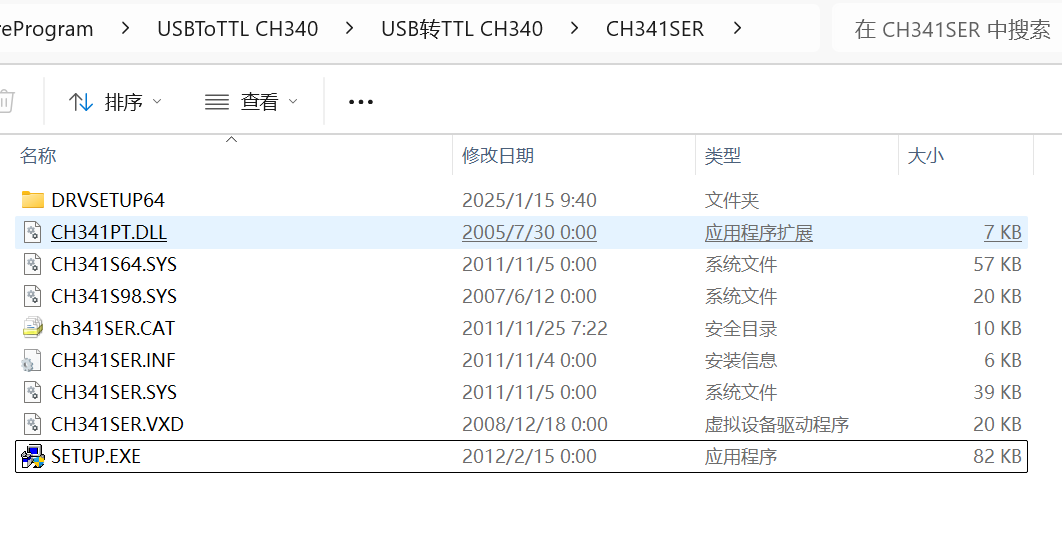
Find the file named 'SETUP.EXE' like below, and install it.
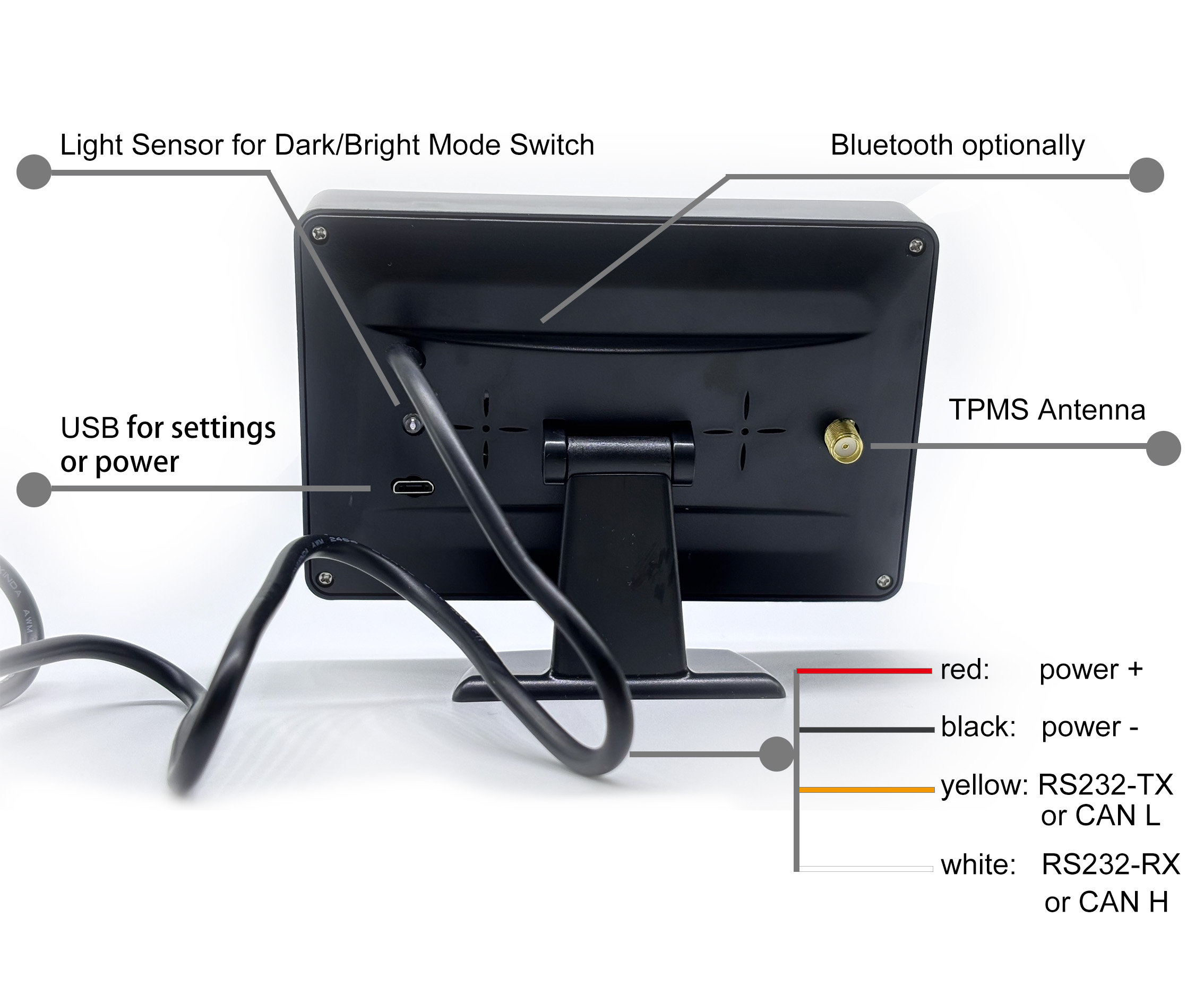
• TPMS display TP09-C
If you use TPMS display TP09-C, driver installation not required.
connect TPMS receiver to PC
• TP07 or signal repeater
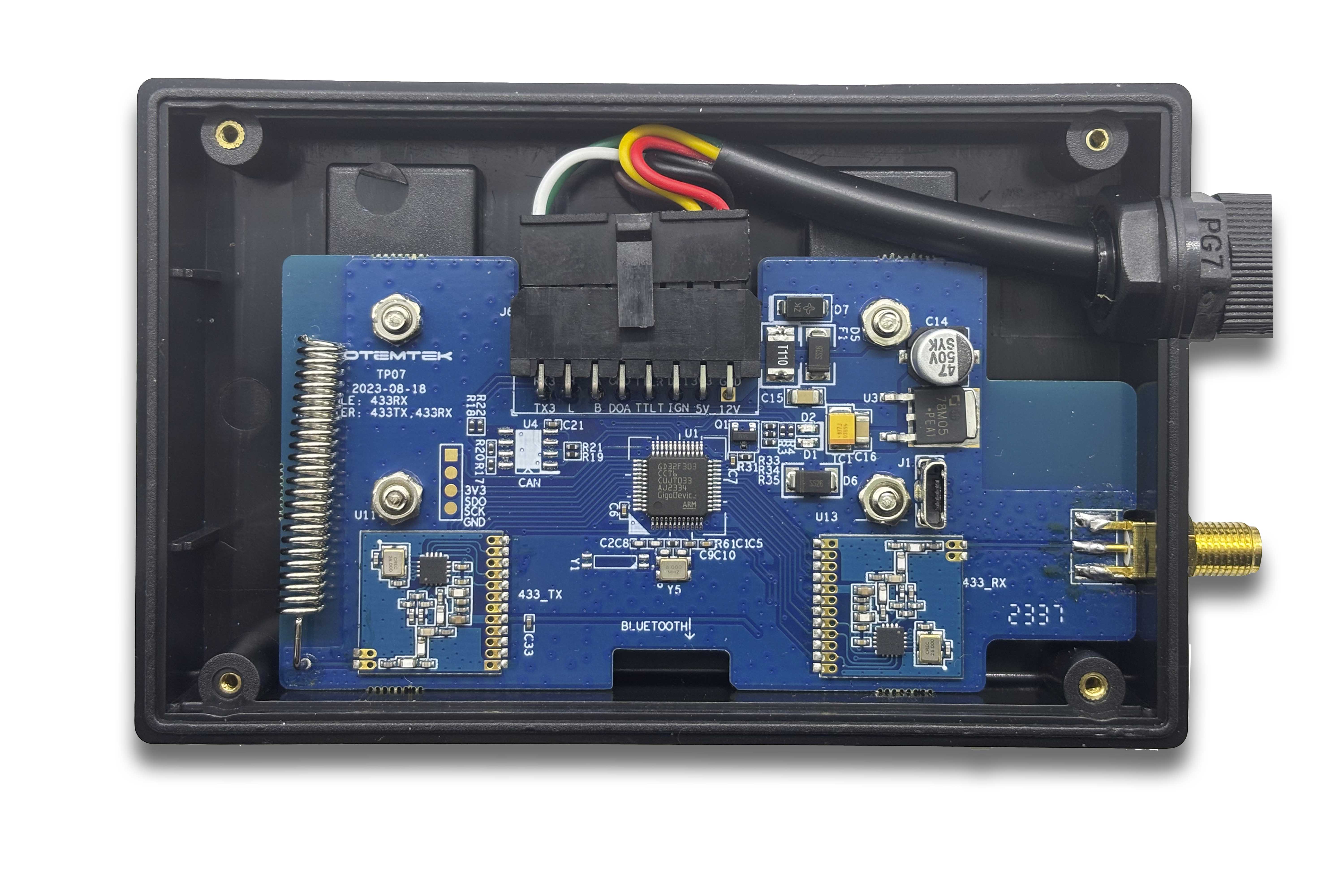
Open the TP07 with screw driver, you will see the USB port on PCB board.
Connect the TP07 to PC via configure cable.
• TPMS display TP09-C
Connect TP09-C to PC via normal micro USB cable
Start configuration
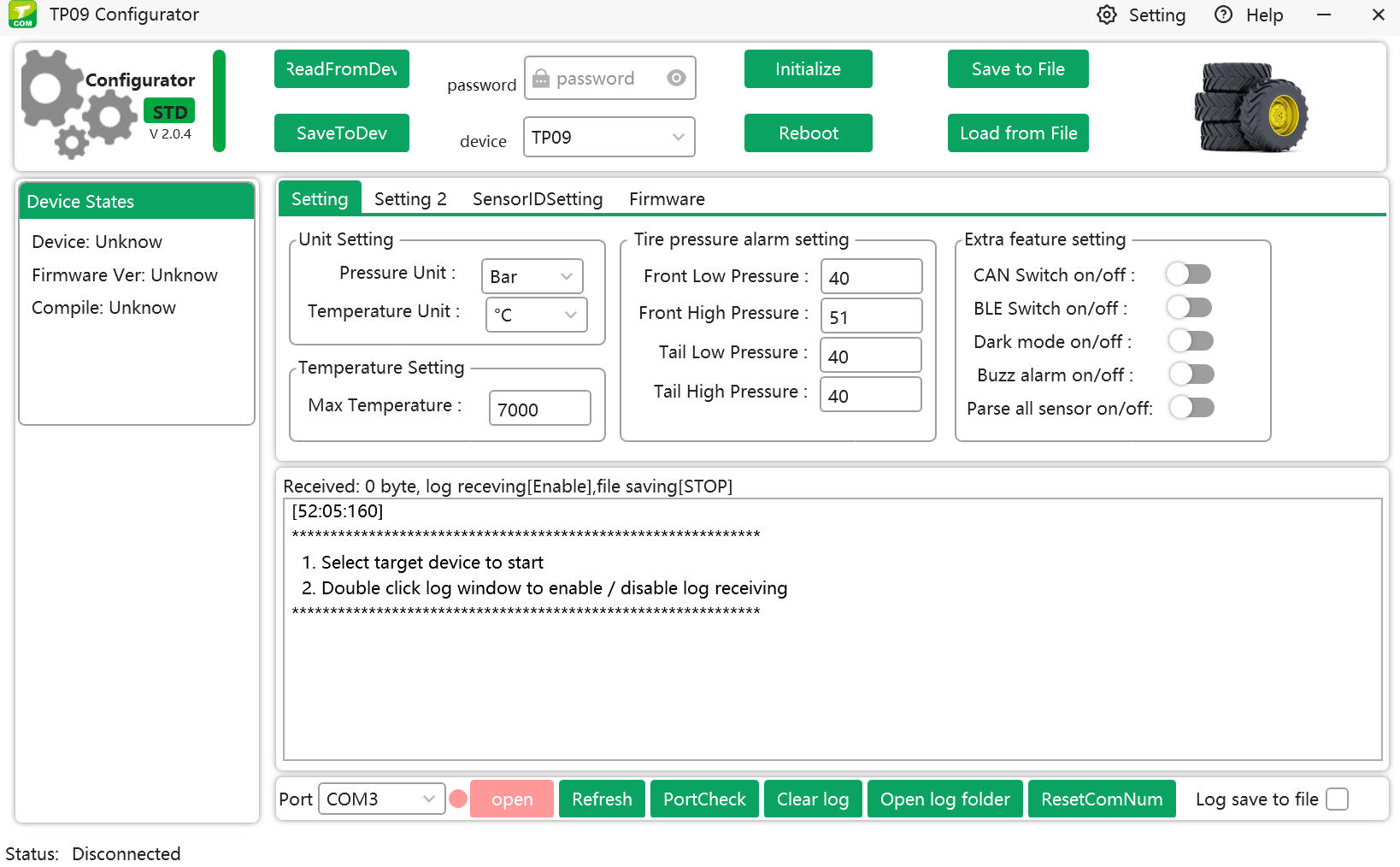
Open configurator
and type password "
000000" in password box.
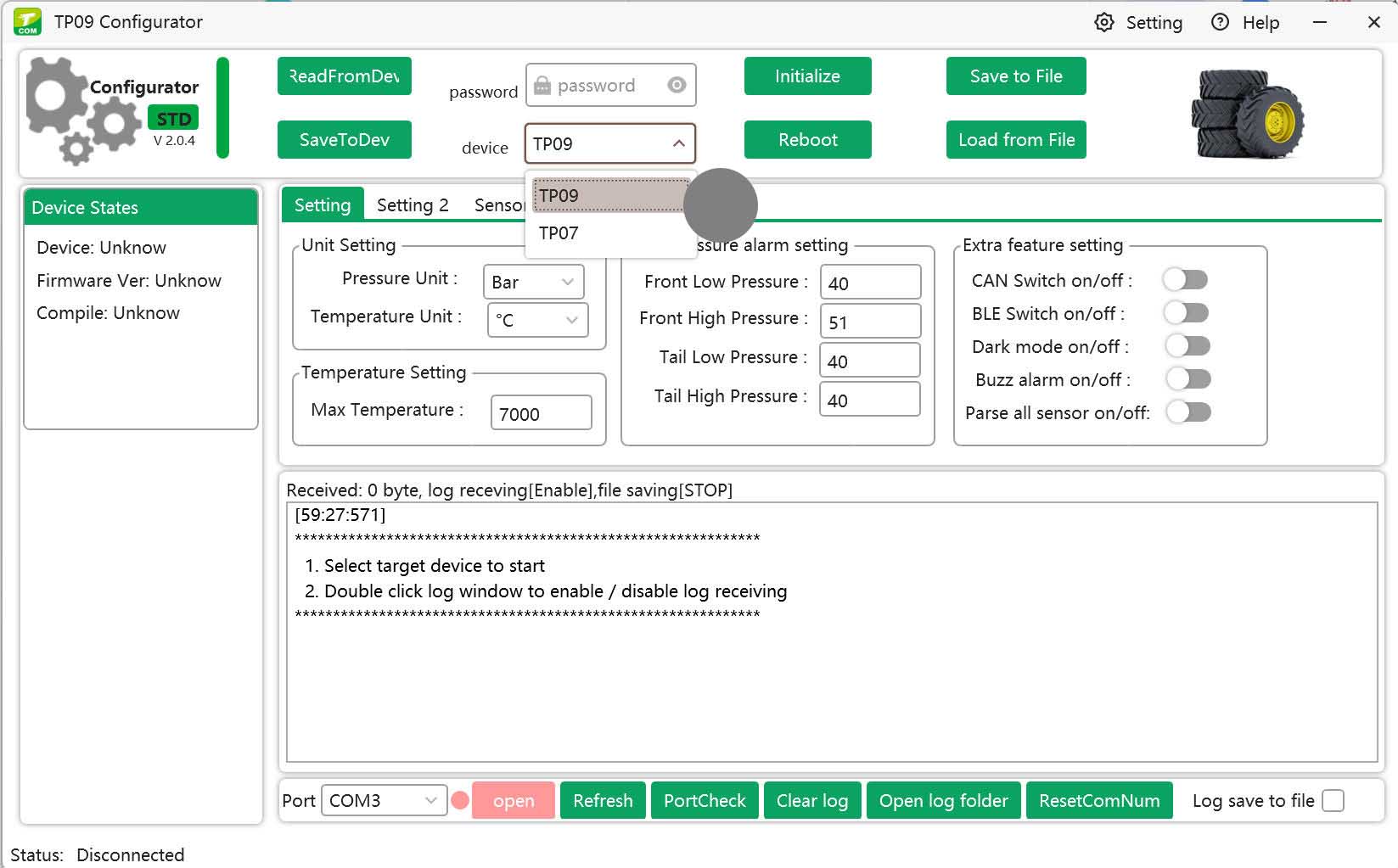
Choose the right product model on configurator
TP09 or TP07. TP09 is TPMS screen display TP09-C. TP07 is TPMS receiver module TP07.
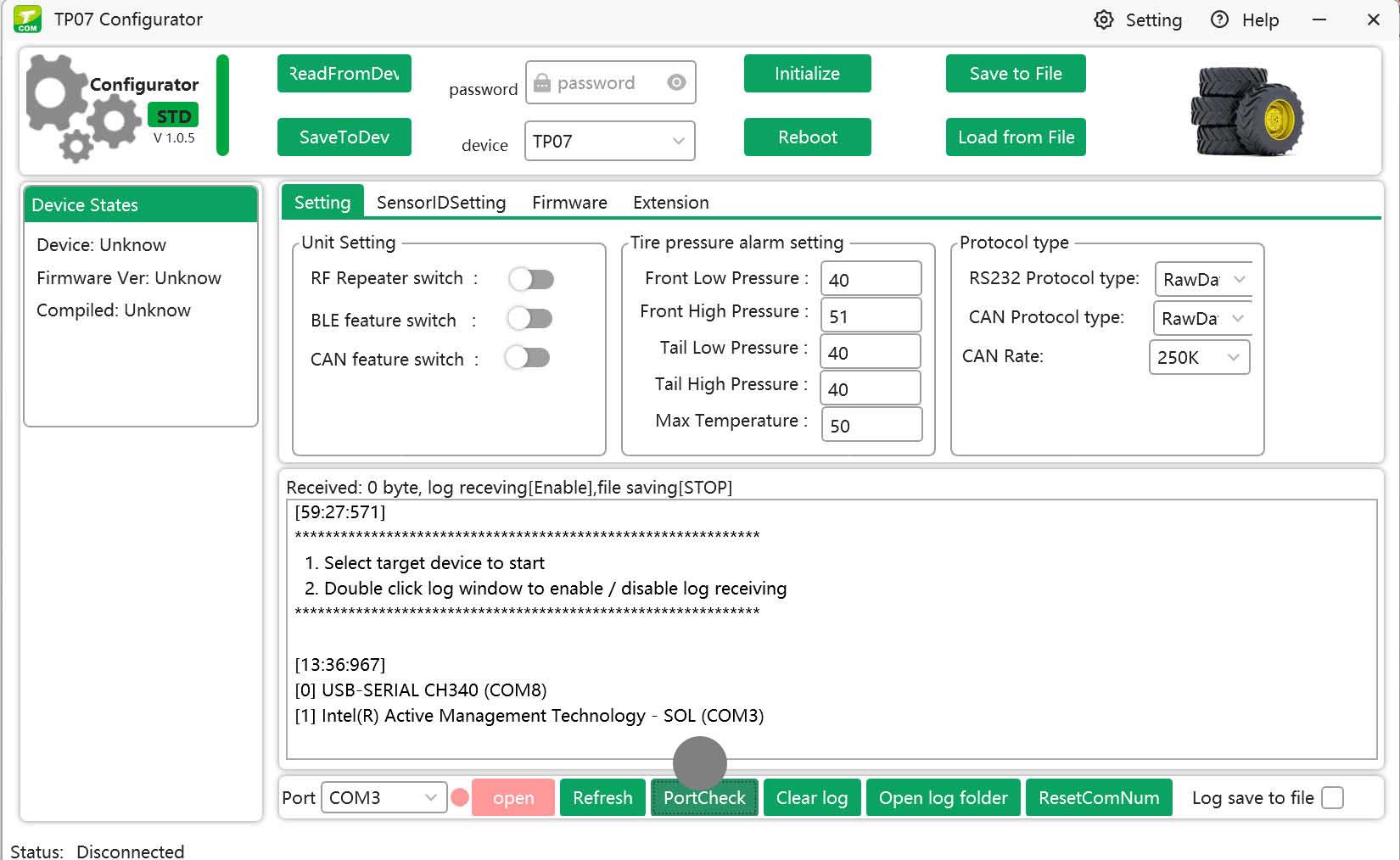
check port
Click "PortCheck" button to find correct port. The log shows "[0] USB-SERIAL CH340 (COM8)", so COM8 is correct port for TP07.
read settings
Click "ReadFromDev" button to load settings. "ReadFromDev" ensures all settings in correct format before configuration work starts.
interface introduction
ReadFromDev
Please click this button each time after you open the configurator. It will ensure all settings are in proper format.
SaveToDev
After "SaveToDev", you can click "ReadFromDev" to see if new settings saved to device successfully:
• if you see new settings on configurator, configured successfully.
• if you see old settings on configurator, configured failed, you can configure it again.
Initialize
This will restore all in default settings.
Import cfg file
import the device parameter from a XML file.
Export cfg file
export current setting into a XML file.
Port
check the Com port list.
open/close
open close the COM port.
PortCheck
Check the port the device uses.
Add tire sensors
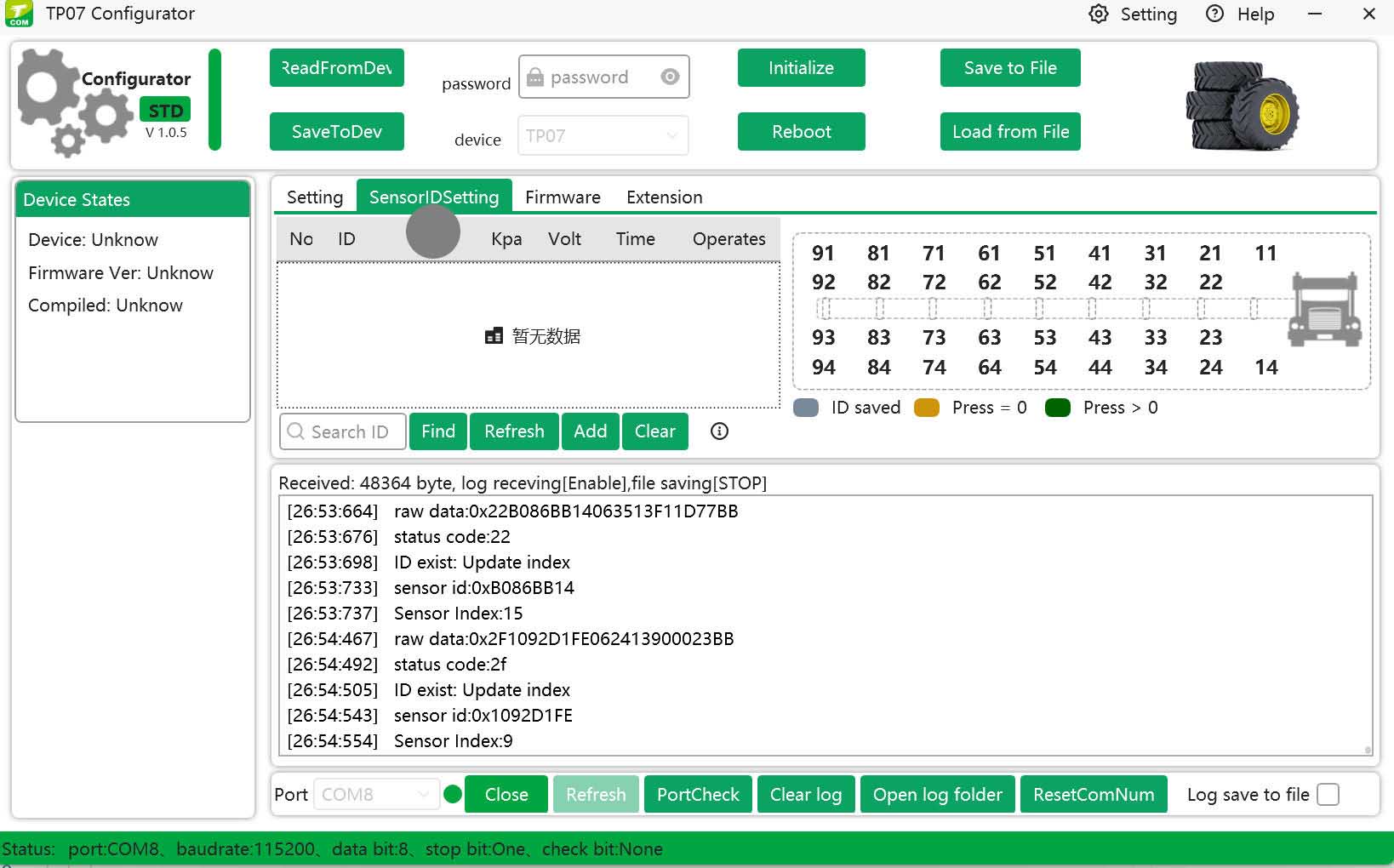
You can add tires position and sensors ID on "SensorIDSetting" tab.
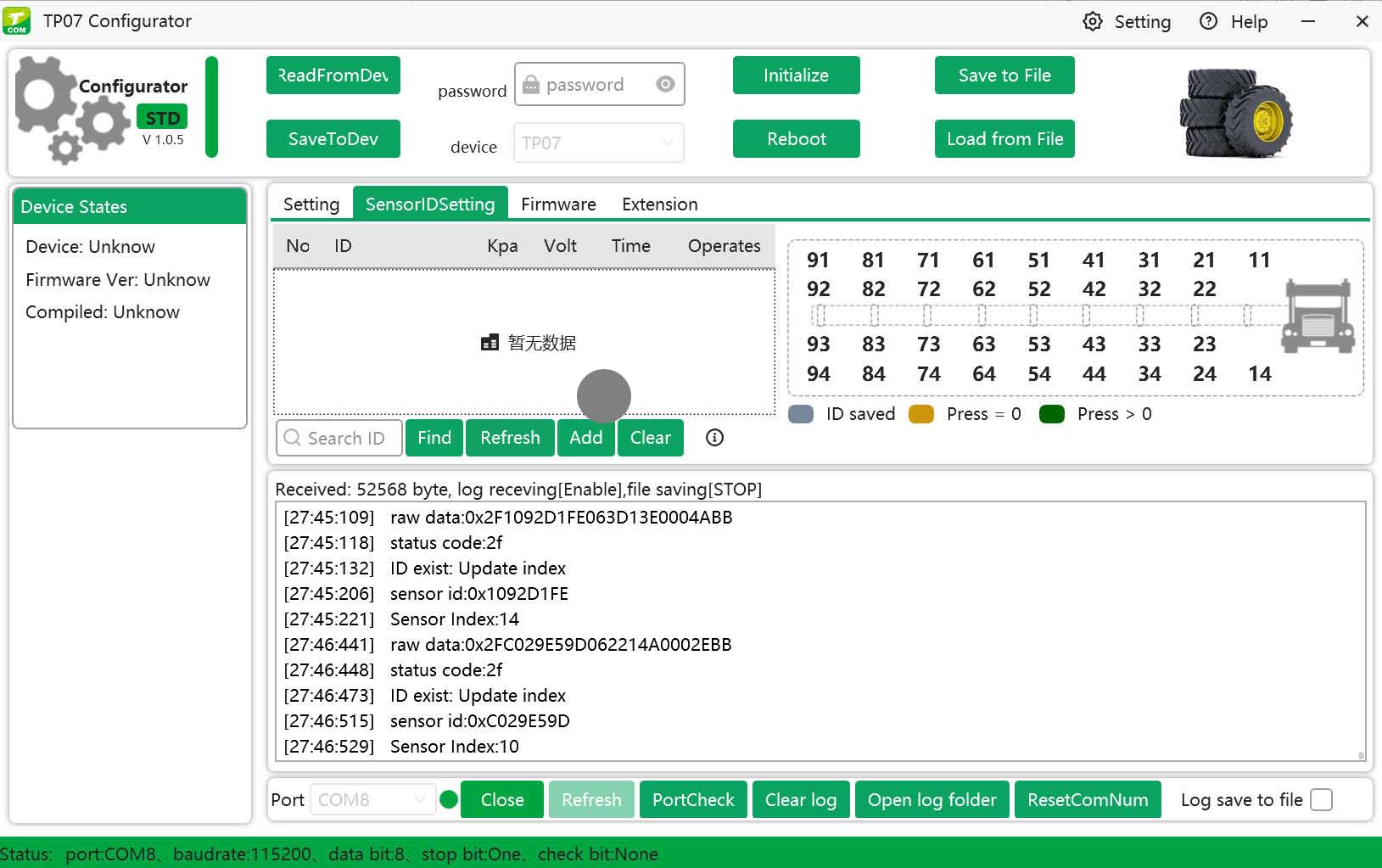
Navigate to "SensorIDSetting" tab.
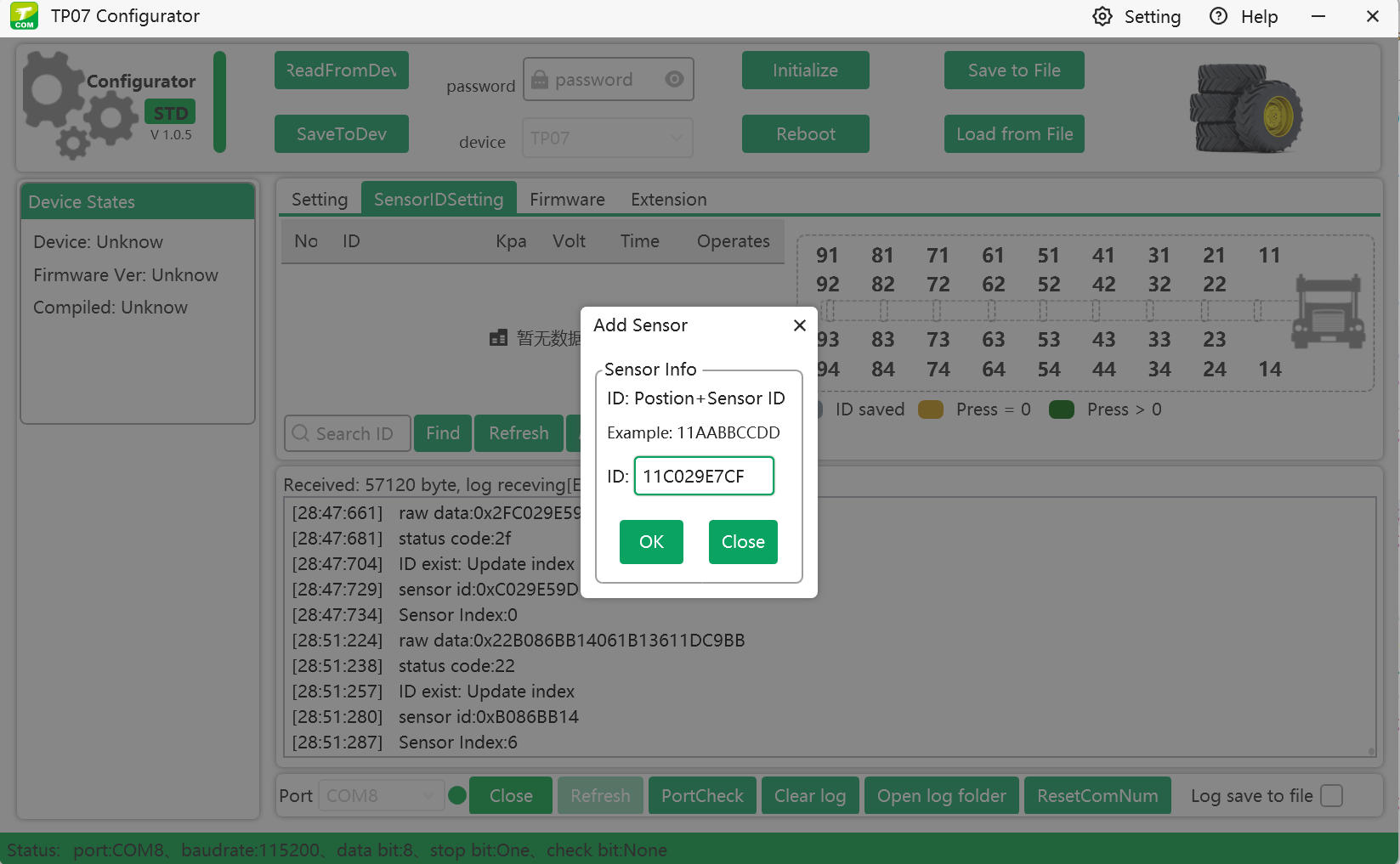
click add button.
add tire position and sensor ID.
referring to the tires mapping on the right of configurator, if you want to bind one tire sensor to tire 11, first make sure this tire sensor is installed on the tire 11 exactly, then
fill 11(this is tire position.) and sensor ID C029E7CF(this is tire sensor ID) into text box. It shows "11C029E7CF" and click OK.
And click "SaveToDev" button to save these settings into device.
After "SaveToDev", you can click "ReadFromDev" to see if new settings saved to device successfully:
if you see new settings on configurator, configured successfully; if you see old settings on configurator, configured failed, you can configure it again.
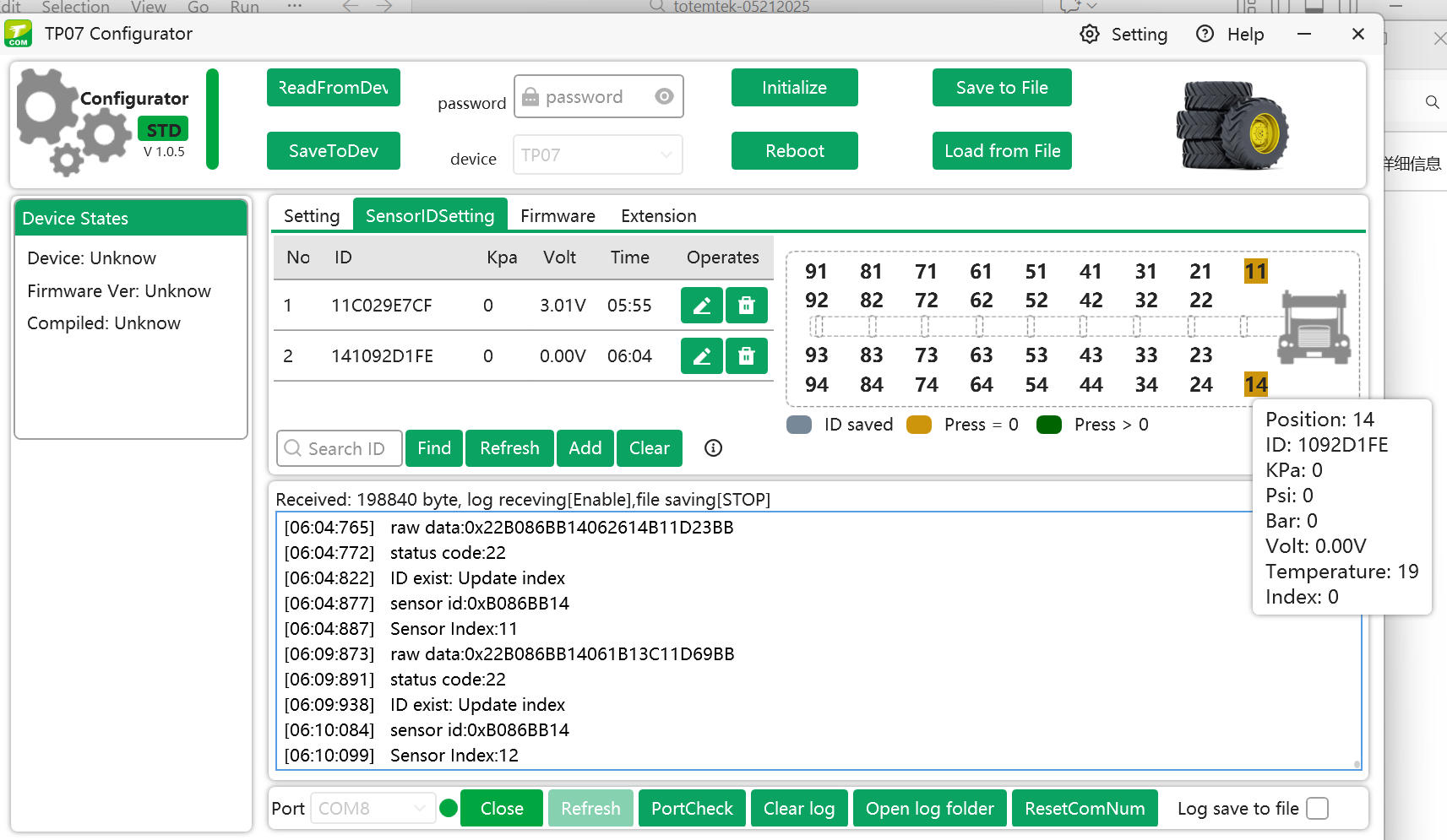
tire position and sensor ID list.
"11C029E7CF" would be shown in the list.